

Simple steps to Login:
- Select Login from the (Top right hand menu item) in Curling I\O
- Use the Curling I\O email address that was sent to you by the “Humber Seniors Webmaster”
- Enter your email and select “Send me a Login Link“. Below is an example of the Login screen:
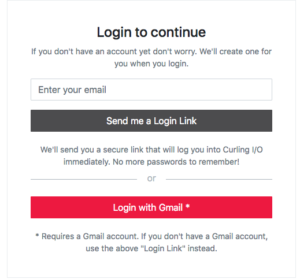
- When you receive the new email, click on the “top link” to login.
You know that you are logged in if the top right hand menu shows: “Account” instead of “Login.”
To Register for your Annual Membership after your Login
- A special membership link will be issued by the membership director in order to process your Annual Membership
Completing your Membership; League Selections; Purchases
- Once the Waivers and Declarations are complete you will be returned to your “cart” where the current selections and fees are presented.
- The “Details” column will indicate for whom this purchase is intended? It could be for yourself or another family member. Once all of the “information required” are completed in “Details” you can Select “Cash/Cheque” to complete the payment or “Continue shopping” to select other items/Leagues, to your Cart.
- You can return to your Cart at any time by Selecting “Cart” in the top menu.
- Duplicate Items can be deleted from your “Cart” by selecting the red x beside the item.
- Once you have made all of your selections: Select “Cash/Cheque” to complete the payment and process the order.
- An email confirmation will be sent to your email confirming your transactions.
Getting Information from Curling I\O

- The landing page on Curling I\O is “Leagues” by default. This is where registered members can make selections for various leagues. The system will ensure that your membership and curling dues are payed only once, per year.
- You must use the same curler profile whenever making a selection so that your annual dues can be verified when making a new selection.
- In addition to “Leagues” information\registration other menu items are presented in the top menu bar such as:

League Information

- Select the desired league from the “Leagues Page“
- A “Details page” will open describing the event (start and end dates, registration info etc.
- Menu items are presented to right of “Details” such as “Registrations“, “Spares“, “Schedule“, “Standings” and “Teams“
- Selecting any of these menu options will provided additional information for that specific league.
- Return to the “Leagues” menu option to select information on other Leagues.
https://widget-curlingio.global.ssl.fastly.net/en/clubs/humber-seniors